Android devices come with several built-in safety features for children, but they only scratch the surface. This guide walks you through everything from basic device settings to advanced monitoring tools, so you can choose the right level of protection for your family.
Key Takeaways
- Google Family Link is free and handles app approval, screen time, and basic location tracking.
- Built-in Android settings cover Play Store restrictions, SafeSearch, and YouTube filters.
- Advanced monitoring (call logs, messages, social media) requires a dedicated tool like SpyTruth.
- Close common workarounds by disabling unknown sources, guest mode, and VPN access.
- Pair technical controls with honest communication for the best results.
Step 1: Set Up a Google Family Link Account
Google Family Link is the starting point for any Android parental control setup. It is free and gives you basic control over your child's device from your own phone.
How to set it up:
- Download the Google Family Link app on your phone (parent device).
- Create a Google Account for your child if they do not have one. Children under 13 require a supervised account.
- Link your child's account to your Family Link app by following the on-screen prompts.
- On your child's Android device, sign in with their supervised Google Account.
What Family Link lets you do:
- App approval — Require your permission before any app is installed from the Play Store.
- Screen time limits — Set daily usage limits and a bedtime schedule that locks the device.
- Location tracking — See your child's device location on a map.
- Content filters — Restrict mature content in Google Search, Chrome, and YouTube.
- Activity reports — See which apps your child uses and for how long.
Limitation
Family Link is a solid foundation, but it cannot monitor message content, social media activity, or call details. For that, you need a dedicated monitoring tool.
Step 2: Configure Built-In Android Safety Settings
Beyond Family Link, Android has several built-in settings worth configuring:
Google Play Store restrictions:
- Open the Play Store on your child's device.
- Tap the profile icon, then Settings > Family > Parental controls.
- Turn on Parental controls and set a PIN your child does not know.
- Set age ratings for apps, games, movies, TV shows, and books.
Google SafeSearch:
- Go to google.com/preferences on your child's device.
- Enable SafeSearch to filter explicit content from search results.
- With a supervised account, SafeSearch is locked on and cannot be turned off by the child.
YouTube restrictions:
- For children under 13, use YouTube Kids instead of the main YouTube app.
- For teens, enable Restricted Mode in YouTube settings to filter out mature content.
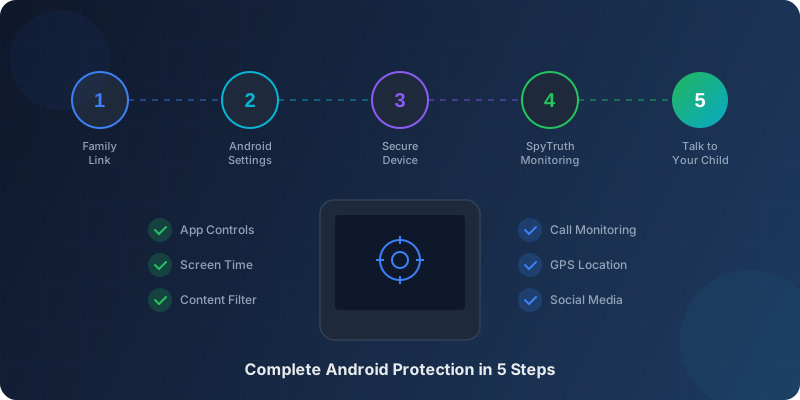
Step 3: Secure the Device Against Workarounds
Children — especially teenagers — are resourceful. Common workarounds include using a friend's device, creating secondary accounts, using VPNs, or installing apps from outside the Play Store. Here is how to close those gaps:
- Disable app installs from unknown sources — Go to Settings > Security > Install unknown apps and make sure all sources are set to "Not allowed."
- Set a strong device PIN/password — Prevent your child from accessing settings to undo your configurations. Use a PIN they do not know for parental control settings.
- Disable guest mode — Some Android devices allow guest accounts that bypass restrictions. Turn this off in Settings > System > Multiple users.
- Review app permissions regularly — Check which apps have access to camera, microphone, location, and contacts.
Step 4: Add Advanced Monitoring with SpyTruth
Built-in tools handle content filtering and screen time, but they do not give you visibility into what your child is actually doing on their phone. This is where a dedicated monitoring tool fills the gap.
What SpyTruth adds beyond built-in controls:
- Call log monitoring — See all incoming and outgoing calls with contact details, timestamps, and duration.
- SMS message tracking — Read sent and received text messages.
- Social media monitoring — View activity on WhatsApp, Facebook, Instagram, and other platforms.
- GPS location tracking — Real-time location with history of where the device has been.
- Browser history — Full Chrome browsing history, including deleted entries.
- App usage details — See exactly which apps are used, when, and for how long.
- Contact list access — View all contacts stored on the device.
- Geofencing alerts — Get notified when the device enters or leaves a defined area.
Quick setup
1. Create an account at spytruth.com — takes under a minute.
2. Install the app on your child's Android device (5 minutes of physical access needed).
3. Link the device using the PIN code shown during setup.
4. Log into your dashboard from any browser to start monitoring.
The app runs silently in the background. It does not drain battery noticeably, does not show a visible icon, and does not interfere with normal device usage.
Step 5: Have the Conversation
Technical controls work best when paired with honest communication. The approach depends on your child's age:
For children under 10:
Keep it simple. "This app helps Mom and Dad make sure you are safe when you use your tablet." Children this age generally accept parental oversight as normal.
For children 10-13:
Be more specific. Explain that the internet has real dangers — people who pretend to be someone they are not, content that is not appropriate for their age, and situations that can feel overwhelming. Let them know monitoring is there to catch problems, not to punish them.
For teenagers:
This is the hardest conversation. Acknowledge their need for privacy while being honest about the risks. Consider a graduated approach: full monitoring for younger teens, scaling back to key safety features (location, contact alerts) as they demonstrate responsible behavior.
Avoid secret monitoring
Do not set up monitoring secretly and hope they never find out. That approach destroys trust if discovered. Instead, frame monitoring as a safety measure — the same way a seatbelt does not mean you are a bad driver.
Recommended Setup by Age
- Under 10: Family Link + YouTube Kids + SpyTruth full monitoring
- 10-13: Family Link + content filters + SpyTruth with focus on contacts, messages, and location
- 14-17: SpyTruth for location tracking, contact alerts, and app usage overview. Reduce message-level monitoring as trust is earned.
There is no single right answer. The right setup is one that matches your child's maturity, the risks they face, and your family's values. The tools exist to give you options — use the level that fits.